Deckbuilder Update: Stacks, Collection Status, and Proxies

MythicHub works best when your decks and binders stay in sync. This deckbuilder update makes it easier to see what you own while you brew and to keep every card in the right place. I wanted to focus on the features that matter most when you have a collection and several decks at the same time. I play a lot of Commander, so I am often shifting cards between decks, checking which copy is where, and trying not to buy the same card twice by mistake.
Decklists in stacks
There is a new way to view your decklist. You can switch to a stacks view that layers cards like a real pile. Click any card to pop it on top. Click it again or anywhere else to put it back. This view shines when you have multiple copies, split piles, or several similar printings. It keeps the list tidy while still letting you focus on a single card when you need it.
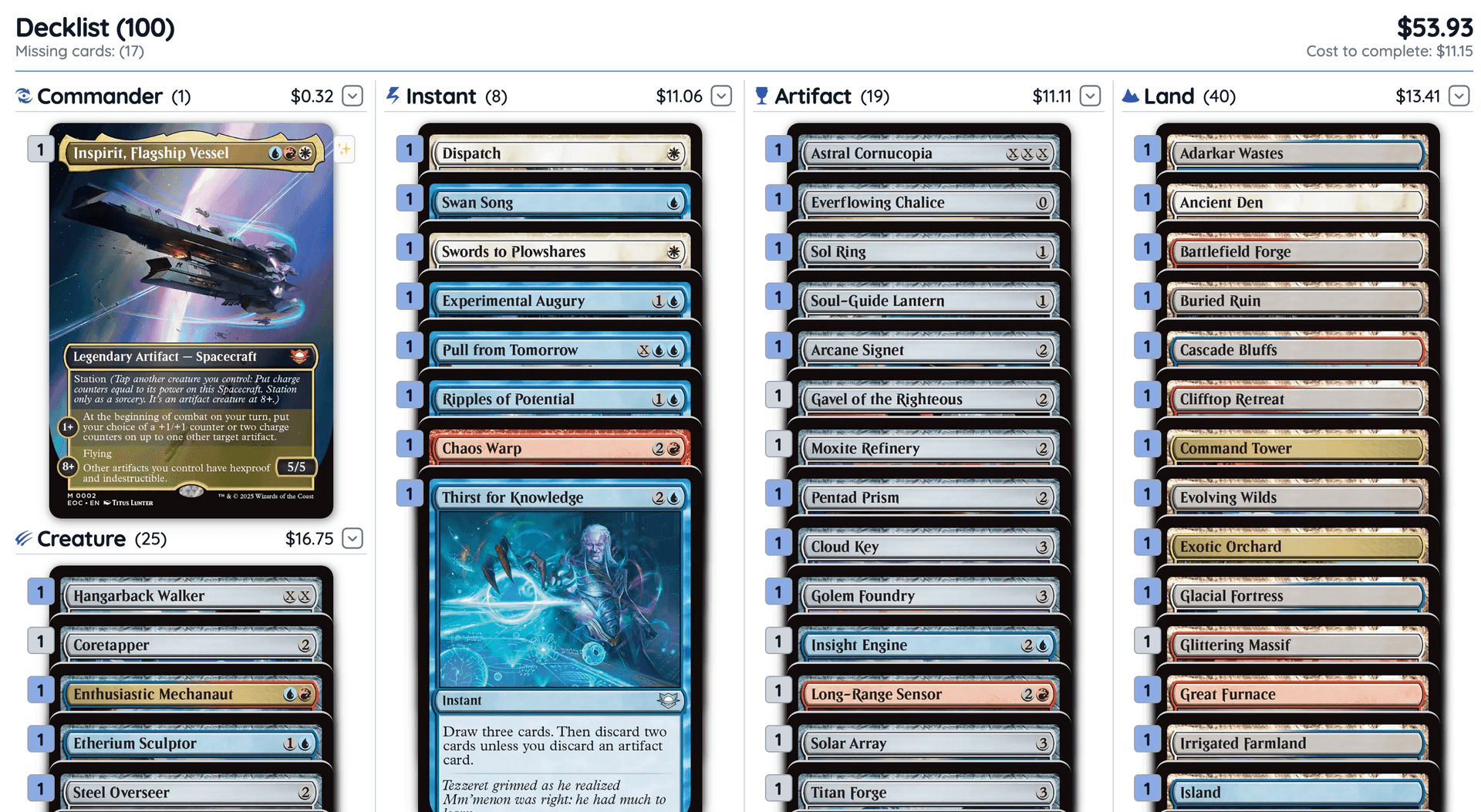
Stacks are also nice for Magic players who like to think in piles. You can see how many cards you have in each section without losing the overview. If you like the standard table, it is still there, but stacks give a fresh way to read a list.
Collection status while editing
The card dialog now has its own Collection Status tab. Before, you had to hover over the card amount to see matching cards from your binders. That was helpful but easy to miss. Now you get a full panel that shows if you own the card, how many copies, which binders they sit in, and how those printings line up with your deck choice. You can jump to that printing while editing the deck card.
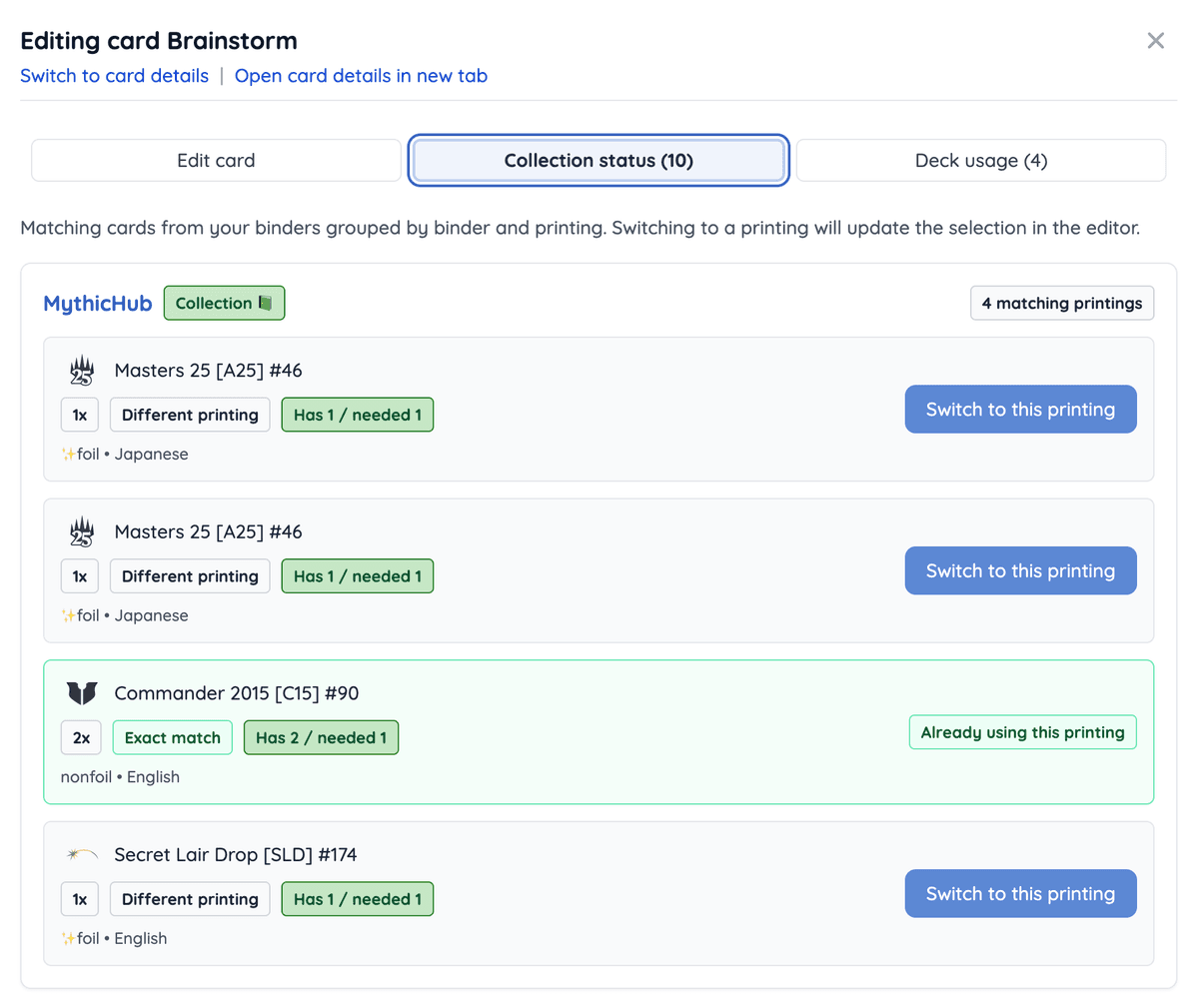
This is a big win for people juggling several decks and binders. You see right away if the same copy is already used somewhere else. It also helps when you want to switch to the exact printing you own, so you do not buy duplicates by accident. If you keep Paper, MTGO, and Arena binders, this keeps the deck honest for the platform you picked.
Deck usage while editing
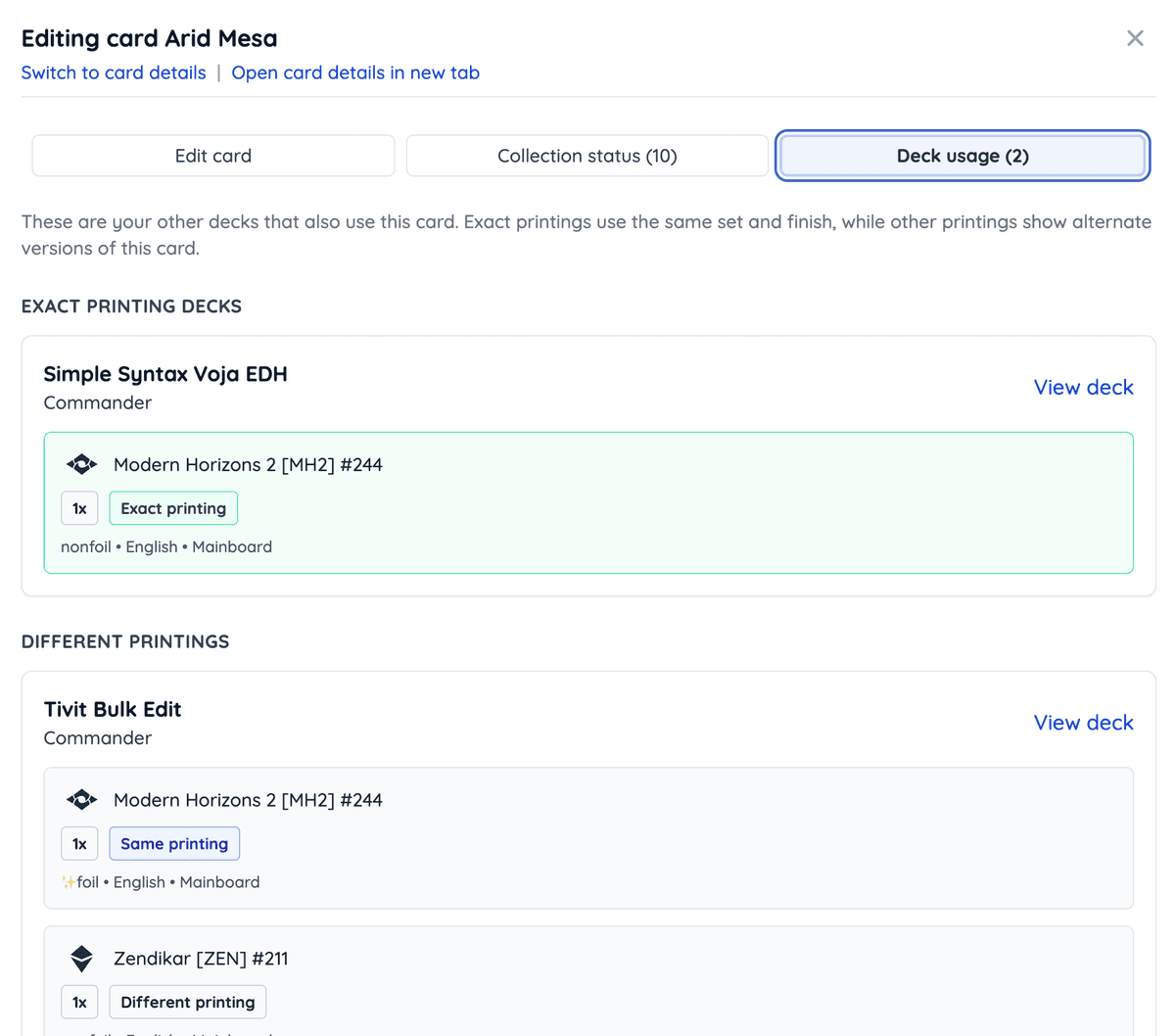
There is a new Deck Usage tab next to Collection Status. It lists your other decks that use this card. Exact printing decks show emerald when the set, finish, and language all match. Same printing shows indigo if the set matches but finish or language differ. Different printings show gray, so you can see at a glance which decks compete for the same copy and which ones are using an alternate version.
Mark proxies and ignore their price
You can now mark any deck card as a proxy. It shows a small 🃏 emoji next to the name, and that card no longer counts toward the deck price. This is perfect for cEDH decks with Reserved List cards, or any brew where you plan to borrow a card or print a placeholder while you save up.
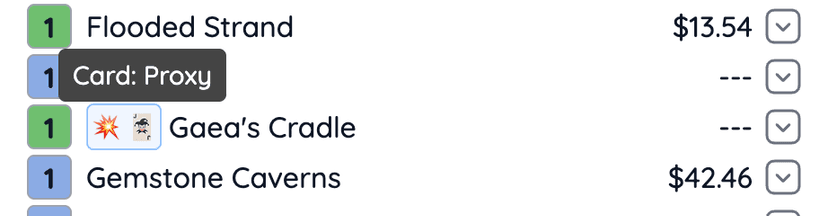
Proxy tracking is more than a tag. It makes price estimates fair. If you want to know what it costs to finish a deck with real copies, you can toggle proxies off the price and see the true gap. If you want to know the full market value with everything real, unmark them. Also, should I swap the joker emoji for something else, like a stamp or a pencil? Tell me what you prefer.
Group cards by artist
The decklist filters include a Group by Artist option. It is great for art-themed decks or for checking Secret Lair drops. You can see how many cards each artist has in your list and spot gaps if you are chasing a theme. If you love a certain style, it is a quick way to see if your deck matches the mood you want.

Tokens show their creators
Tokens now display a small 🪄 emoji. Hover to see which card creates that token. It is an easy way to understand why a token appears in the list and to double-check that every maker is present. This helps when you import a deck and wonder if a random token is supposed to be there or if you are missing the spell that makes it.

Built for collections with many decks
The main idea behind these changes is to make decklists reflect what you really own. The Collection Status tab shows your binders. The stacks view keeps the list readable even with many copies. Proxy flags keep price honest. Grouping by artist adds flavor without losing clarity. Token creators answer the small questions before they become mistakes.
When you edit binder cards, you also see which decks use them. That is a mirror of what you now see in the deck view with Deck Usage. Both sides help you avoid double using the same copy. MythicHub is meant to shine when you manage multiple binders and multiple decks at once.
A commander example: one card across four decks
Here is a real Commander situation. I have four different printings of Blasphemous Act spread across four decks. When I start a new red deck, I want to know if I can move one of those copies instead of buying another. With stacks, I can see the copies in a tidy pile and click the printing I care about. With the Collection Status tab, I see which binder holds each version and which decks already use it. If I decide to move the Innistrad printing, I know exactly which deck I am taking it from, and I do not lose track of it later.
I hope these changes make building and maintaining decks smoother. I would love to hear how stacks feel in practice and what emoji you want for proxies. Tell me what you think and what you want to see next.
Share feedback
Questions or feedback? Reach me at matt(at)mythichub.com or through feedback form.
Thanks for reading, and happy collecting!